
Jul 23, 2026 ● Adri Marquez
Cisco Talent Bridge Recruiter User Guide
In this Guide
Register Your Account
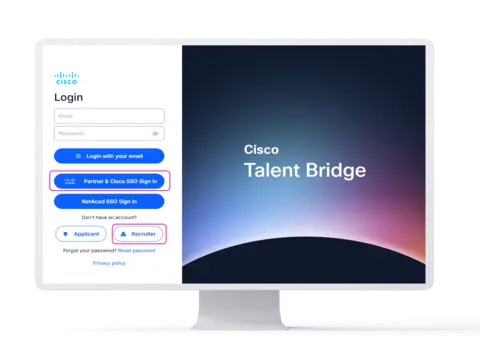
Select Partner & Cisco SSO for sign-in with a Cisco or partner account.
Not part of the Cisco network? Select Recruiter to create an account.
Registering Your Account for SSO
To access the new Talent Bridge platform via Single Sign-On (SSO), please ensure you have a registered Cisco account. If you need to create one, follow this quick guide:
- Step 1: Go to the Cisco ID Profile Page.
- Step 2: Click Sign Up to create a new account.
- Step 3: Fill out the required registration information.
- Step 4: Select your specific relationship (Partner, Customer, or Vendor) to finish.
Note: If you already have a Cisco login, no further action is needed!
Standard Recruiter Setup
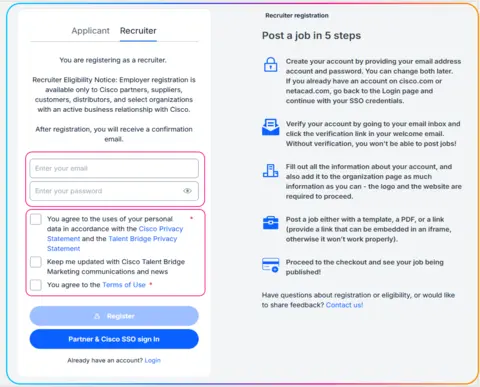
External Access: Please register your email and agree to the terms to get started.

Watch the Demo
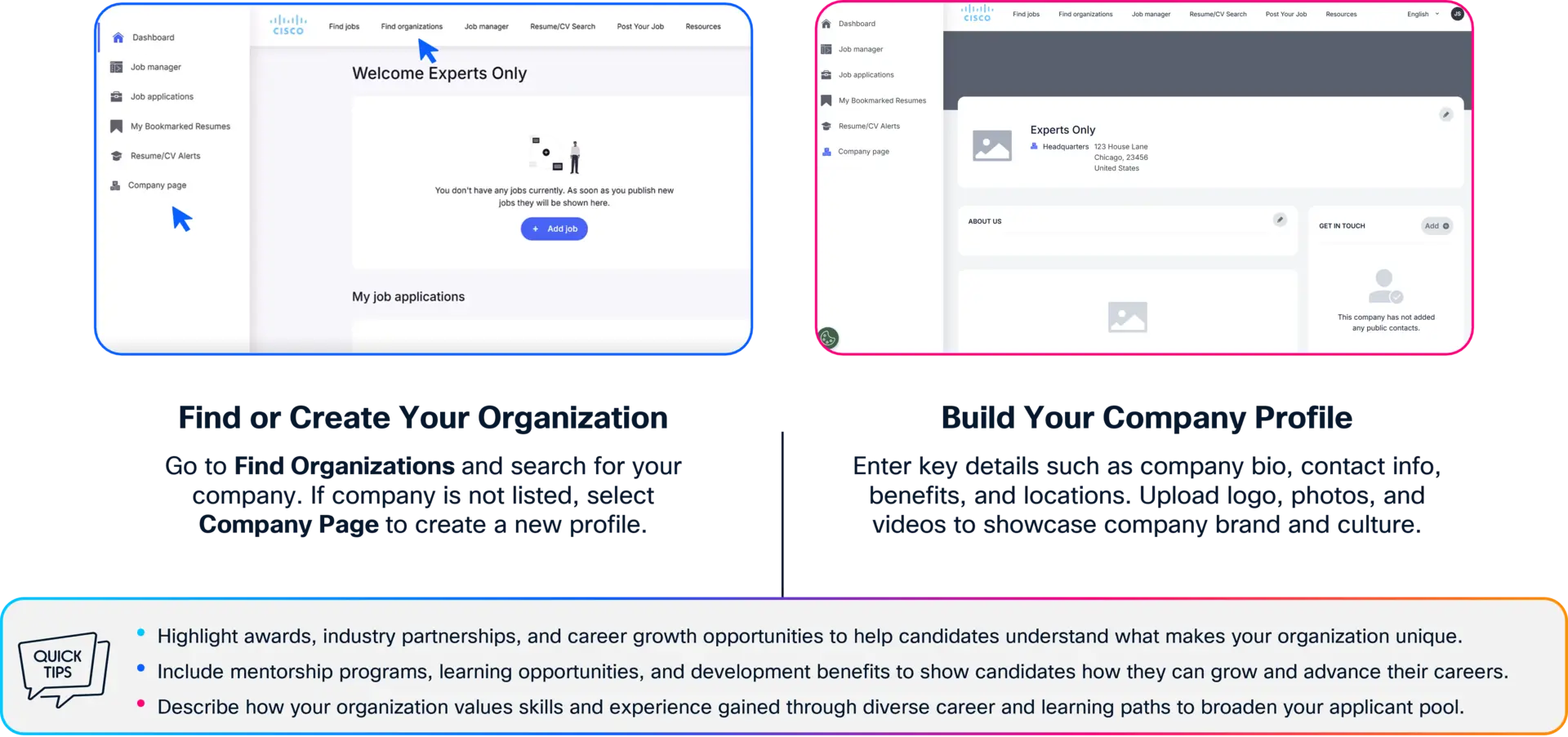
Creating Your Company Page
Build a compelling company profile that helps job-ready talent understand your organization, culture, and opportunities, encouraging them to apply.
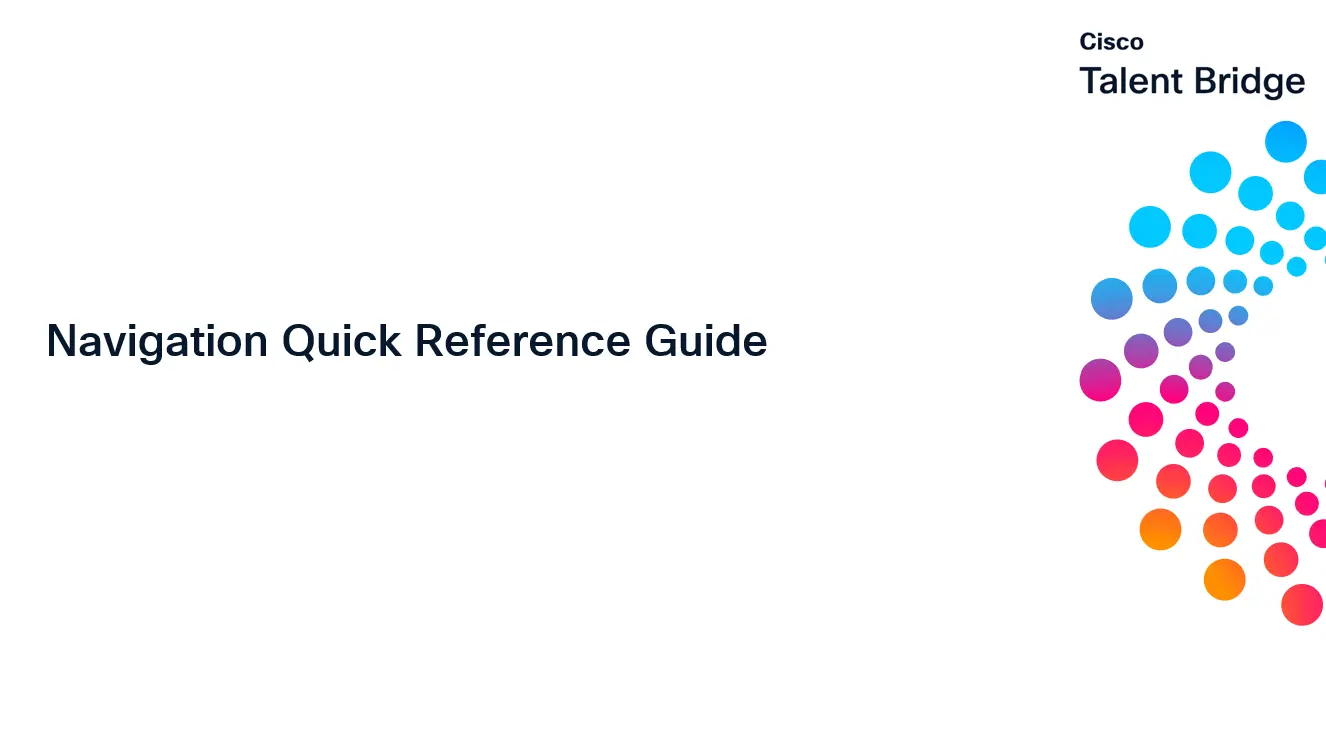
Top Navigation & Key Tools

- Request a Spotlight Job - Request a spotlight job to be featured on the Home page and top of the job search.
- Find Jobs – Explore current job openings across industries and locations to understand market demand.
- Find Organizations – Crucial First Step: Search for your organization before creating a new profile to avoid creating duplicates.
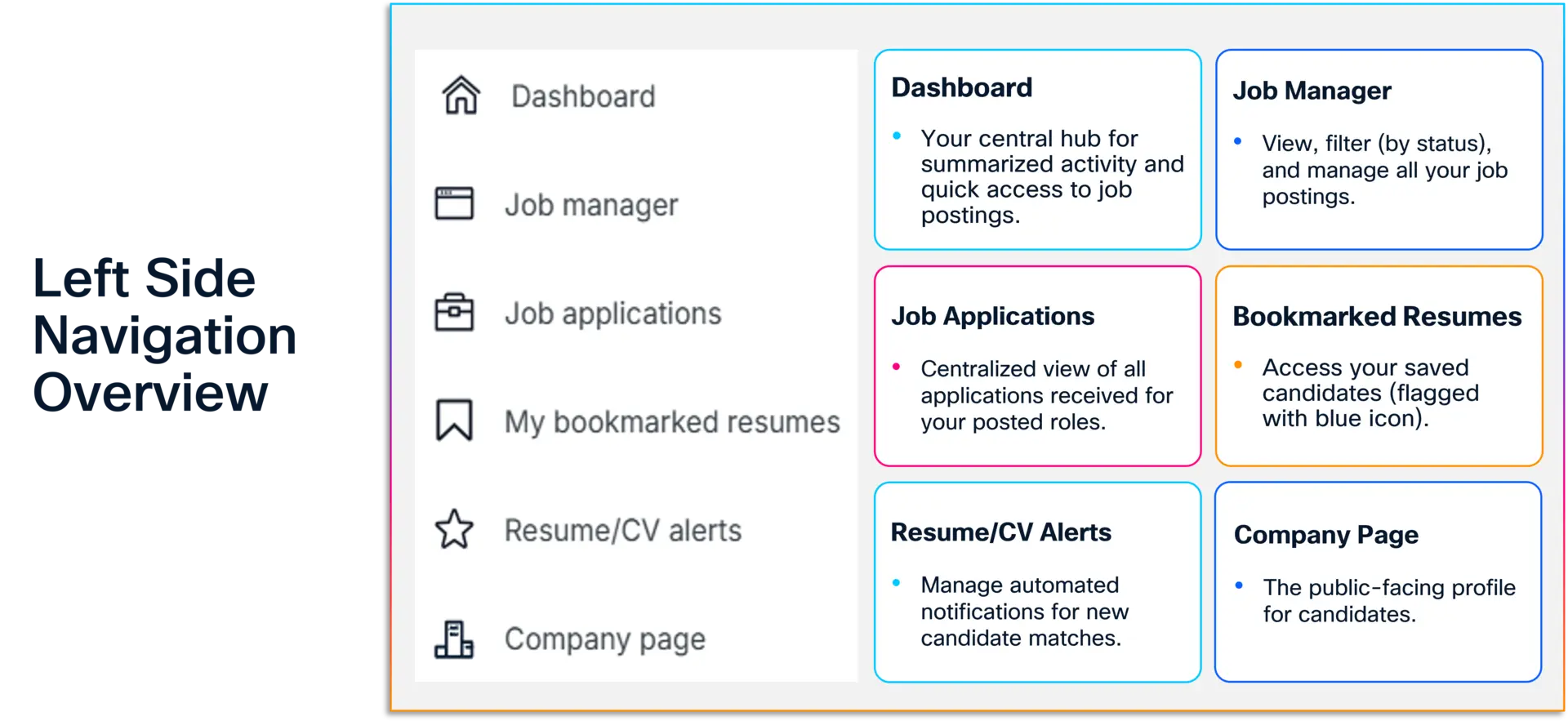
- Job Manager – View, manage and filter your jobs by status and use the export button to download a report.
- Resume/CV Search – Use the advanced filtering & Key Word Search. Set up alerts for specific skills (e.g., "Machine Learning") to receive notifications when new candidates match your criteria.
- Post Your Job – Manually post a job in 3 steps and choose how you want applicants to apply.
- Blog Resources – Access platform guidance and recruiting resources to optimize your portal experience.

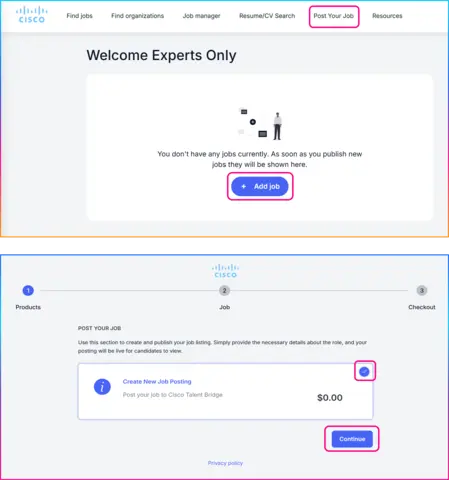
Post Your Job
Select Post Your Job or +Add Job from your dashboard.
Choose Create New Job Posting.
Select Continue to start creating your job posting.
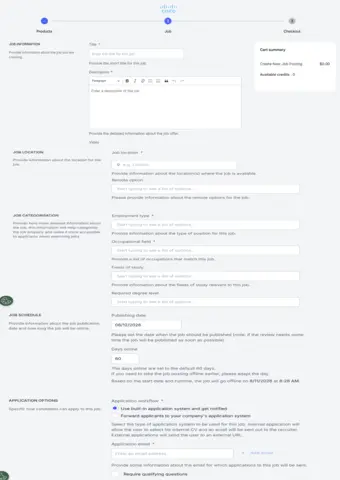
Configure Your Job Posting
Enter a clear job title and description, along with key job details.
Set the posting schedule and determine how applications will be managed.
Add qualifying questions to help identify candidates who meet your requirements.
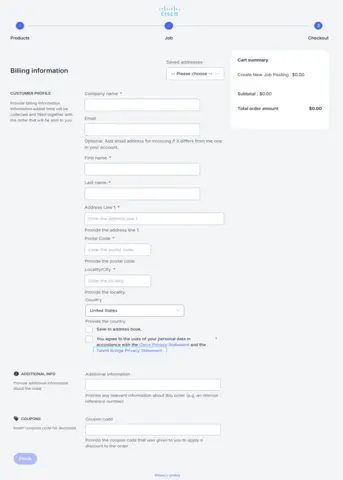
Complete Checkout
Enter your company and contact information in the Customer Profile section.
Review the information and save any updates to your contact details.
Accept the privacy terms and select Finish to complete your submission.
Note: Cisco does not charge employers for using this platform. Please update and save your contact information so we can reach you if needed about your postings.

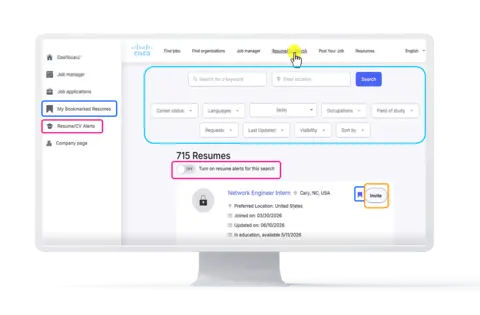
1. Search for Candidates
- Select Resume/CV Search from the top navigation menu.
- Search using keywords and filters such as location, skills, occupations, languages, career status, and field of study to find candidates who match your hiring needs.
2. Save Candidates
- Select the Blue Flag next to a resume to save candidates of interest.
- View and manage saved candidates in My Bookmarked Resumes.
3. Set Up Alerts
- Turn on the Resume/CV Alert toggle to receive notifications when new candidates matching your search criteria become available.
- View and manage matching candidate notifications in Resume/CV Alerts.
4. Invite Candidates to Apply
- Open a candidate profile and select Invite.
- Send an invitation encouraging the candidate to apply for your open role.
5. Review Similar Candidates
- Talent Bridge recommends candidates with similar qualifications based on your search criteria.
- Review these recommendations to discover additional qualified talent.
Take the Next Step
With Talent Bridge, you can reach skilled early-career talent, promote your opportunities, and engage candidates directly. Start building your talent pipeline today.